Streaming with Resi

Many churches—including Life.Church—use Resi as their streaming provider because of its resilient delivery, detailed video analytics, multi-site capabilities, and strong technical support.
This guide walks you through how to successfully integrate Resi with the Church Online Platform.
Resi Configuration Overview
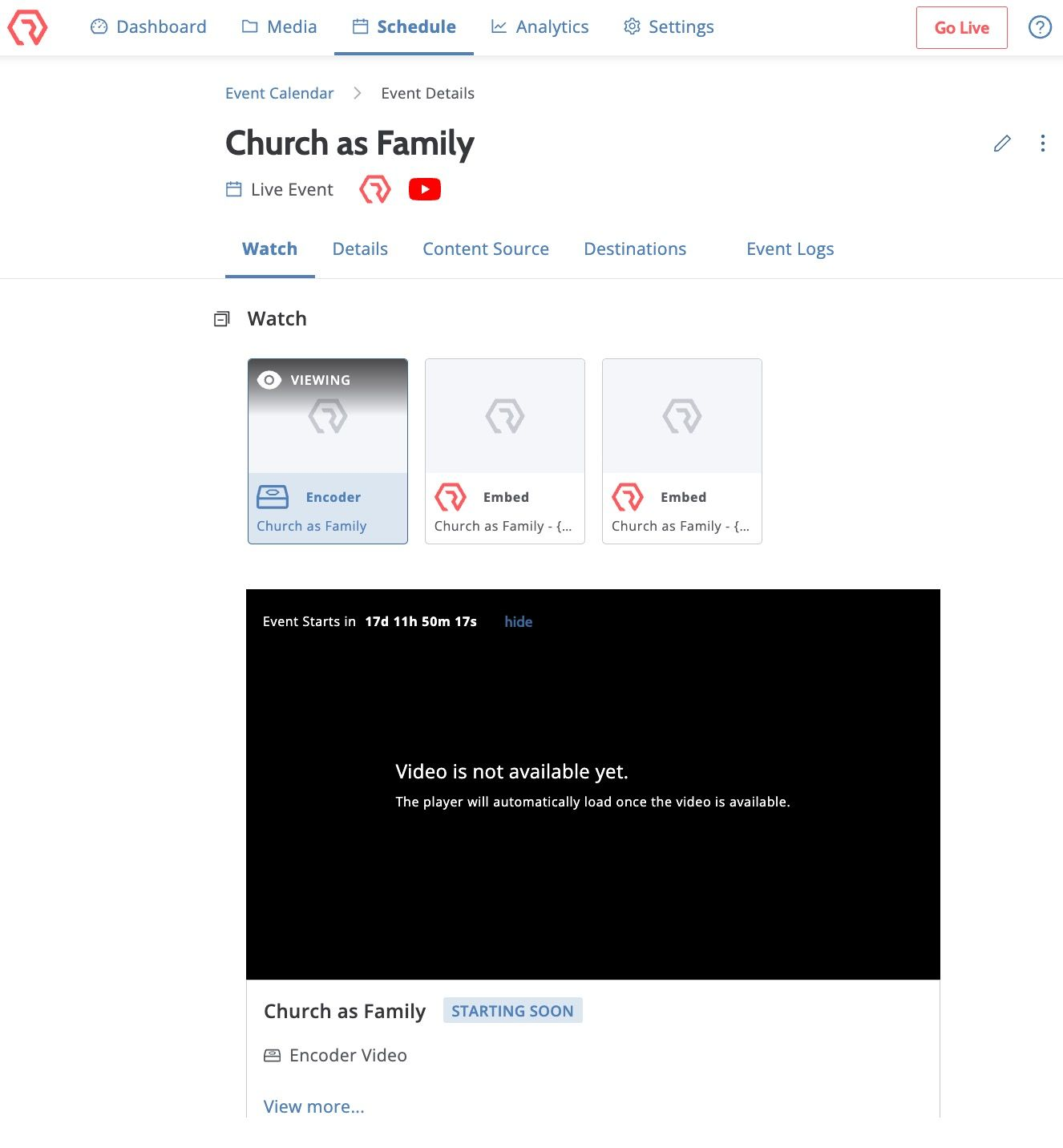
In Resi, a live service is created as an Event on the Resi calendar. Each event includes three key components:
1. Encoder
Each event uses a Resi encoder (a hardware device with HDMI or SDI inputs) that sends video and audio to Resi over the internet.
2. Destinations
Destinations are added to the event, such as YouTube, Facebook, or Web.
3. Embed Code
The Church Online Platform uses the Resi Web destination, which provides an embed code. Be sure to use the Script Tag embed option.
A typical Resi event configuration may look similar to this.
See also: Resi Support: Stream to the Church Online Platform
How to Embed Resi into the Church Online Platform
- Log in as an Admin.
- Navigate to your Service and click Edit Content.
- Scroll to the Video section.
- Select Embed Code and paste your Resi Script Tag embed code.
- The embed code is found in Resi by navigating to Destinations → Web Channels → View Details → Share (top icon), then copying the Script Tag.
- Click Save.
Critical Tip: Timing Is Key
Successful streaming on the Church Online Platform depends on proper timing between Resi and your service start.
Because Resi uses a resilient buffer, there is an intentional delay of approximately 2 minutes.
Rule of Thumb
Your Resi stream must be live at least 3–5 minutes before the scheduled Church Online Platform video start time.
Why this matters
- Accounts for the 2-minute Resi delay
- Adds buffer for potential clock drift on viewers’ devices
Important notes
- Use the video start time in Church Online Platform as your reference, not the general service start time.
- Chat and other experience elements can begin before the video starts.
Best practice
- Start your Resi encoder 30 minutes before the service to verify the feed.
- Start the Resi Web destination at least 5 minutes before the Church Online Platform video start time.
Frequently Asked Questions (FAQs)
Why does the stream work for most viewers but fail for one specific viewer?
This usually indicates an issue with the viewer’s device clock, time zone, or daylight savings settings. The Church Online Platform triggers video playback based on the viewer’s local device time.
If a device clock is even one minute ahead, the embed may attempt to load before the Resi stream is ready.
Solution
- Start the Resi Web destination at least 5 minutes early.
- Ask affected viewers to verify their device time at Time.is.
Why am I seeing last week’s service instead of the current live feed?
This is typically a timing issue. If the Church Online Platform attempts to load the embed before the Resi encoder and Web destination are active, it may default to the most recent available Resi content.
Fix
- Start the encoder and Web destination earlier.
- Have viewers refresh their browser after a minute or two.
Why doesn’t Church Online automatically recover if timing is off?
The Church Online Platform loads the Resi player using an external embed code at the scheduled start time. It cannot detect whether the video inside the player is ready.
If the embed fails to load correctly, the viewer must refresh their browser to retry.
How do the encoder and embed code fit into the overall flow?
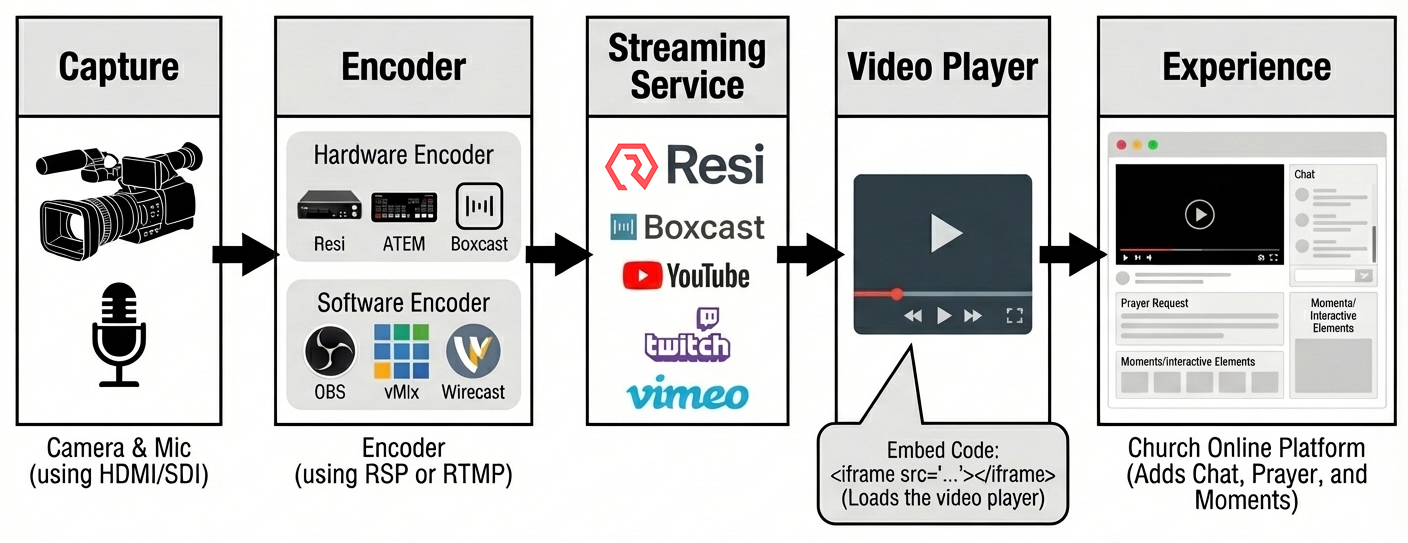
Think of the signal path like this:
Capture → Encoder → Streaming Service → Video Player → Experience
- Capture: Camera and microphone (HDMI or SDI)
- Encoder: Hardware (Resi, ATEM, BoxCast) or software (OBS, vMix, Wirecast)
- Streaming Service: Resi, BoxCast, YouTube, Vimeo, etc.
- Video Player: The embed code that loads the player
- Experience: Church Online Platform (adds chat, prayer, and moments)
Why is the video live on YouTube but not on Church Online Platform?
This usually indicates a timing mismatch or an issue with the embed code.
Steps to troubleshoot
- Confirm you copied the correct Resi Script Tag embed code.
- Paste the embed code into a third-party tool like JSFiddle or W3Schools.
- If it works there but not on Church Online Platform, double-check:
- Service start time
- Video start time
- Embed code placement
- If it doesn’t work anywhere, contact Resi Support.
Quick workaround
- Temporarily embed the YouTube live stream using the YouTube guide.
Does Resi support Simulated Live and captions?
The Church Online Platform natively supports Simulated Live via URL format with YouTube, Twitch, Vimeo, and Wistia.
With Resi, Simulated Live can be achieved using Resi On Demand. In Resi Studio, this is typically done through the Replay feature, which allows you to broadcast a previously aired event or uploaded video to a Web destination. The resulting embed code functions like a live stream in Church Online Platform.
For workflows involving captions, translations, or advanced video features, we recommend contacting Resi Support directly.